> ## Documentation Index
> Fetch the complete documentation index at: https://docs.rivi.software/llms.txt
> Use this file to discover all available pages before exploring further.
# Account and stations
> Manage your profile, security, preferences, and active station.
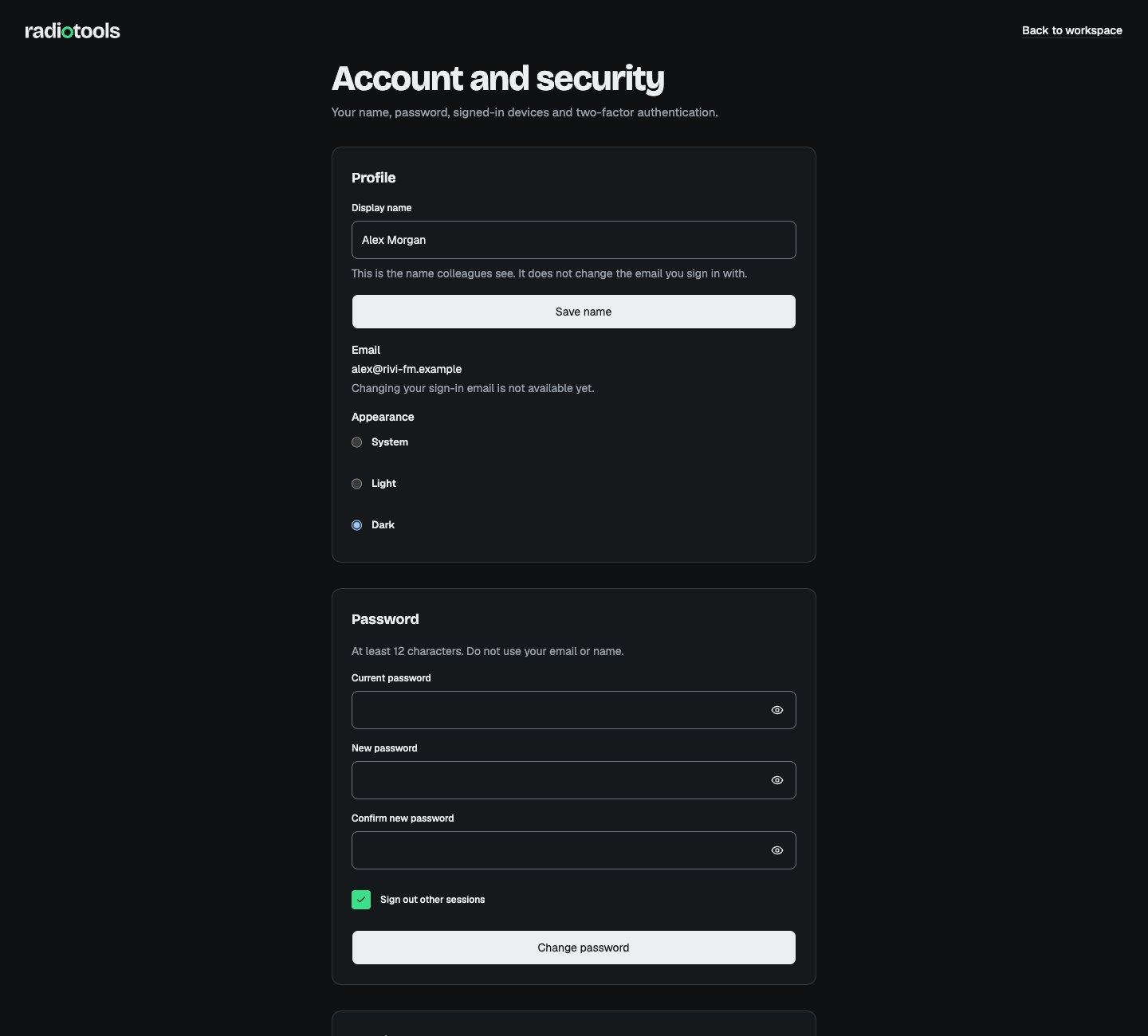
Open the account menu and choose **Account and security** to manage your personal account. The same menu opens the **Command palette**, **Keyboard shortcuts**, and **Help and support**, and has **Sign out**. Station-wide defaults live in **Settings**.
 ## Profile and preferences
You can change the **Display name** colleagues see and choose **Light**, **Dark**, or **System** **Appearance**. Whether the sidebar is collapsed is also a personal preference. These choices are saved to your account, so they follow you to every device and station.
The interface language is not a personal setting. RadioTools uses the active station's language, English or Dutch, for every member. People with **Manage station settings** change it in [Station settings](/radiotools/station-admin/station-settings#save-station-defaults). Before you sign in, you can choose a language on the sign-in page.
Changing your display name does not change your sign-in email. Changing the sign-in email is not available yet.
| Setting | Applies to |
| - | - |
| Display name, appearance, sidebar | Your account |
| Email notifications | You, separately for each station |
| Interface and content language, timezone, readout language, weather and traffic coverage | The active station |
| Editorial workflow and permissions | The active station and its content types |
## Password and signed-in devices
1. Open **Account and security**.
2. Enter your current password and the new password twice.
3. Choose whether to **Sign out other sessions**, then choose **Change password**.
Passwords must contain at least 12 characters and must not match your name or email. A password reset also ends other active sessions.
In **Sessions**, choose **View sessions** and confirm your password when asked. **Revoke** a device you do not recognize, or use **Sign out other sessions**. Keep your current session open until you have confirmed that your new credentials work.
## Two-factor authentication
Choose **Set up two-factor authentication** to open the guided setup:
1. Confirm your current password and choose **Start setup**.
2. Scan the QR code with your authenticator app, or copy the setup URI into it.
3. Save the recovery codes somewhere you can reach if your phone is unavailable.
4. Enter the code from your authenticator app and choose **Verify authenticator**.
5. Choose **I have stored these codes**. You are signed out; sign in again with your new code.
Recovery codes are also called backup codes. They are shown once. Use **Regenerate backup codes** to create a new set, which invalidates the old one.
To move to a new phone, use **Replace authenticator**. Scan the QR code, then choose **Verify and replace**. The current authenticator keeps working until you verify the replacement.
Station owners must keep two-factor authentication on. They cannot open their station without it and cannot turn it off.
## Working across stations
Check the station switcher before making changes. The station timezone governs broadcast times even when your device is in another timezone. When you switch to a station with another language, the interface switches with it.
Private preparation ideas and editorial drafts follow ownership, assignment, and visibility rules. An administrator role does not automatically reveal another person's private work.
If your membership is removed or the station is suspended, access is checked again on subsequent requests. If every owner is locked out, contact your agreed support channel for recovery.
## Related topics
- [Station settings](/radiotools/station-admin/station-settings.md)
- [Get started](/radiotools/getting-started.md)
- [RadioTools help](/radiotools/index.md)
- [Team and invitations](/radiotools/station-admin/team.md)
- [Integrations](/radiotools/station-admin/integrations.md)
This documentation is built and hosted on [Mintlify](https://mintlify.com), a developer documentation platform.
## Profile and preferences
You can change the **Display name** colleagues see and choose **Light**, **Dark**, or **System** **Appearance**. Whether the sidebar is collapsed is also a personal preference. These choices are saved to your account, so they follow you to every device and station.
The interface language is not a personal setting. RadioTools uses the active station's language, English or Dutch, for every member. People with **Manage station settings** change it in [Station settings](/radiotools/station-admin/station-settings#save-station-defaults). Before you sign in, you can choose a language on the sign-in page.
Changing your display name does not change your sign-in email. Changing the sign-in email is not available yet.
| Setting | Applies to |
| - | - |
| Display name, appearance, sidebar | Your account |
| Email notifications | You, separately for each station |
| Interface and content language, timezone, readout language, weather and traffic coverage | The active station |
| Editorial workflow and permissions | The active station and its content types |
## Password and signed-in devices
1. Open **Account and security**.
2. Enter your current password and the new password twice.
3. Choose whether to **Sign out other sessions**, then choose **Change password**.
Passwords must contain at least 12 characters and must not match your name or email. A password reset also ends other active sessions.
In **Sessions**, choose **View sessions** and confirm your password when asked. **Revoke** a device you do not recognize, or use **Sign out other sessions**. Keep your current session open until you have confirmed that your new credentials work.
## Two-factor authentication
Choose **Set up two-factor authentication** to open the guided setup:
1. Confirm your current password and choose **Start setup**.
2. Scan the QR code with your authenticator app, or copy the setup URI into it.
3. Save the recovery codes somewhere you can reach if your phone is unavailable.
4. Enter the code from your authenticator app and choose **Verify authenticator**.
5. Choose **I have stored these codes**. You are signed out; sign in again with your new code.
Recovery codes are also called backup codes. They are shown once. Use **Regenerate backup codes** to create a new set, which invalidates the old one.
To move to a new phone, use **Replace authenticator**. Scan the QR code, then choose **Verify and replace**. The current authenticator keeps working until you verify the replacement.
Station owners must keep two-factor authentication on. They cannot open their station without it and cannot turn it off.
## Working across stations
Check the station switcher before making changes. The station timezone governs broadcast times even when your device is in another timezone. When you switch to a station with another language, the interface switches with it.
Private preparation ideas and editorial drafts follow ownership, assignment, and visibility rules. An administrator role does not automatically reveal another person's private work.
If your membership is removed or the station is suspended, access is checked again on subsequent requests. If every owner is locked out, contact your agreed support channel for recovery.
## Related topics
- [Station settings](/radiotools/station-admin/station-settings.md)
- [Get started](/radiotools/getting-started.md)
- [RadioTools help](/radiotools/index.md)
- [Team and invitations](/radiotools/station-admin/team.md)
- [Integrations](/radiotools/station-admin/integrations.md)
This documentation is built and hosted on [Mintlify](https://mintlify.com), a developer documentation platform.