> ## Documentation Index
> Fetch the complete documentation index at: https://docs.rivi.software/llms.txt
> Use this file to discover all available pages before exploring further.
# Media library
> Upload, organize, preview, and reuse station audio and images.
Open **Media** to manage station files for preparation and editorial content. New uploads remain private until publication rules allow listener-facing use.
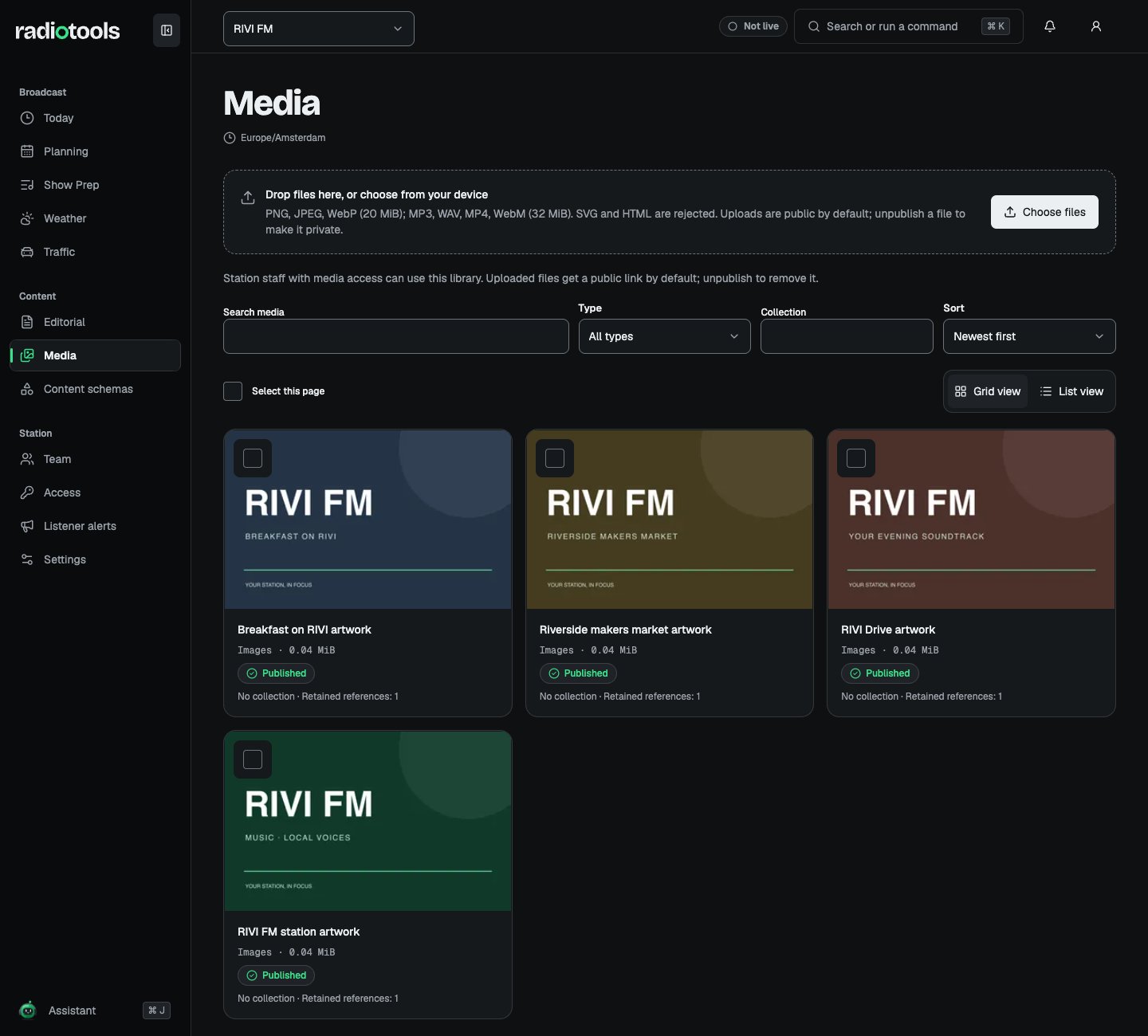 ## Upload a file
1. Choose the upload action and select a supported file.
2. Watch the upload tray for progress, completion, or a failure reason.
3. Open the asset and give it a clear title, description, credits, rights, and collection where useful.
4. Preview the file before adding it to a story or rundown.
Uploads send the file in parts and retry missing parts. You can cancel an upload. If it fails, check the reason, format, file size, and available station storage before retrying.
| Kind | Supported formats | Maximum size |
| - | - | - |
| Image | PNG, JPEG, WebP | 20 MiB |
| Audio | MP3, WAV, supported audio in MP4 or WebM | 32 MiB |
| Video | MP4, WebM | 32 MiB |
Unsupported and executable files are rejected. File contents are validated as well as the declared format.
## Find and preview assets
Search and filter the library, then open an asset to inspect its metadata and usages. The library shows files your role may read. Uploading or editing metadata requires content editing permission; listener-facing media publication requires content publishing permission.
Private previews use short-lived access tied to your session. If playback stops after expiry, refresh the preview. Copying a private preview URL does not give another person access.
## Replace a file
Replacement creates a new version of the asset. Existing records can keep their older referenced version. Check usages before replacing or publishing: a new upload does not silently rewrite already-published content.
## Remove or unpublish media
Review the impact on dependent content first. Referenced assets cannot be deleted until their usages are resolved. Unpublishing or releasing usages may also affect listener delivery, so confirm the affected records before applying the action.
Media references in an owner export do not include the file bytes. Download files through normal authorized media access when making a separate backup.
## Related topics
- [Editorial](/radiotools/daily-work/editorial.md)
- [RadioTools help](/radiotools/index.md)
- [Station settings](/radiotools/station-admin/station-settings.md)
- [Daily work](/radiotools/daily-work/index.md)
- [SDKs](/radiotools/api-reference/sdks/index.md)
This documentation is built and hosted on [Mintlify](https://mintlify.com), a developer documentation platform.
## Upload a file
1. Choose the upload action and select a supported file.
2. Watch the upload tray for progress, completion, or a failure reason.
3. Open the asset and give it a clear title, description, credits, rights, and collection where useful.
4. Preview the file before adding it to a story or rundown.
Uploads send the file in parts and retry missing parts. You can cancel an upload. If it fails, check the reason, format, file size, and available station storage before retrying.
| Kind | Supported formats | Maximum size |
| - | - | - |
| Image | PNG, JPEG, WebP | 20 MiB |
| Audio | MP3, WAV, supported audio in MP4 or WebM | 32 MiB |
| Video | MP4, WebM | 32 MiB |
Unsupported and executable files are rejected. File contents are validated as well as the declared format.
## Find and preview assets
Search and filter the library, then open an asset to inspect its metadata and usages. The library shows files your role may read. Uploading or editing metadata requires content editing permission; listener-facing media publication requires content publishing permission.
Private previews use short-lived access tied to your session. If playback stops after expiry, refresh the preview. Copying a private preview URL does not give another person access.
## Replace a file
Replacement creates a new version of the asset. Existing records can keep their older referenced version. Check usages before replacing or publishing: a new upload does not silently rewrite already-published content.
## Remove or unpublish media
Review the impact on dependent content first. Referenced assets cannot be deleted until their usages are resolved. Unpublishing or releasing usages may also affect listener delivery, so confirm the affected records before applying the action.
Media references in an owner export do not include the file bytes. Download files through normal authorized media access when making a separate backup.
## Related topics
- [Editorial](/radiotools/daily-work/editorial.md)
- [RadioTools help](/radiotools/index.md)
- [Station settings](/radiotools/station-admin/station-settings.md)
- [Daily work](/radiotools/daily-work/index.md)
- [SDKs](/radiotools/api-reference/sdks/index.md)
This documentation is built and hosted on [Mintlify](https://mintlify.com), a developer documentation platform.