> ## Documentation Index
> Fetch the complete documentation index at: https://docs.rivi.software/llms.txt
> Use this file to discover all available pages before exploring further.
# Show preparation
> Build a rundown, write scripts, complete tasks, and export a show sheet.
Open **Show Prep** from a broadcast in Today or Planning. Each broadcast has its own rundown, scripts, tasks, and readiness checks.
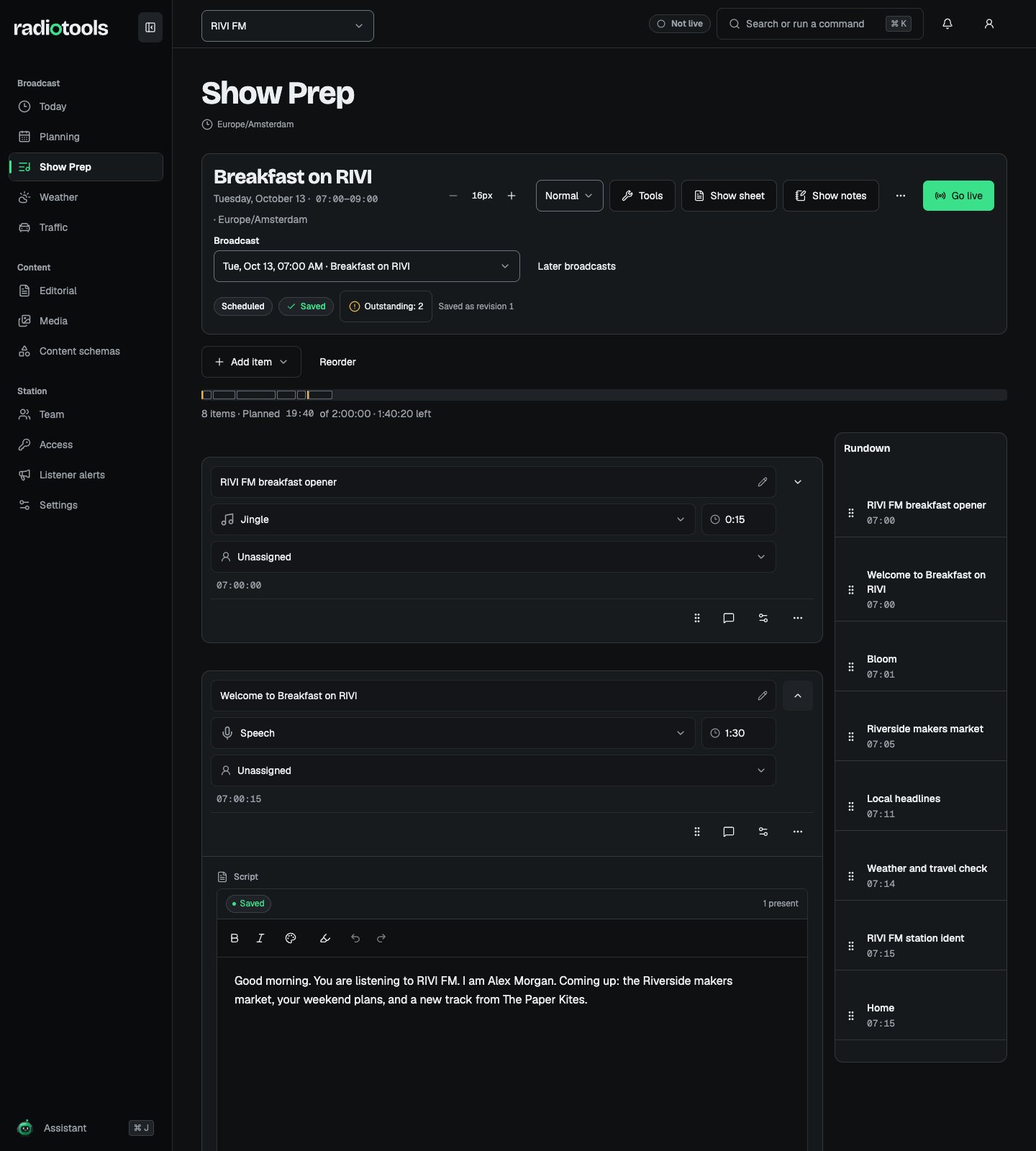 ## Build the rundown
1. Open the broadcast and confirm its title, date, and team.
2. Add an item and choose its type, such as speech, music, interview, news, weather, or jingle.
3. Enter a title and planned duration. Add a fixed time when an item must be anchored to a particular instant.
4. Write the script, add research references or media, and arrange the items in broadcast order.
5. Check the save and connection indicators before leaving the workspace.
Your station may add custom item types and fields. Inserting, moving, and deleting rows requires broadcast editing permission and access to the broadcast. The active live item cannot be deleted.
## Scripts and collaboration
Connected script editing saves through the broadcast's live room. The saved indicator confirms that the server received the text; presence shows who is connected. These indicators describe different things.
Open the selected item to edit its script. If connection or authorization is lost, pause editing and preserve your text using the available copy or export action. Reconnection loads the current authorized workspace before you continue.
## Ideas and research
Ideas start private to their author. Share an idea when the station team should see it, then place an accessible idea on a rundown. Search and counts follow the same visibility rules.
Add research links or media references to keep source material with the item. Check that links still work and that media is available to the team before the show.
## Tasks and readiness
Create tasks, assign them to staff, and mark them complete as work finishes. Tasks can also come from the program template.
Readiness checks cover the rundown, scripts, media, timing, and tasks. Open the affected items to fix outstanding checks. They help the presenter decide whether to go live; they do not prevent the team from editing. Starting live with outstanding checks records a reason for that decision.
## Reuse templates and import playlists
Applying a program template **appends copies** of its items and tasks. Review the preview before applying it, especially if the current rundown already contains similar rows. Existing scripts remain in place.
An **ASC playlist** import adds music items to the selected hourly window. It preserves existing rows. Check titles, artist metadata, timing, and the preview before confirming. A rundown holds up to 500 items.
## Print or export a show sheet
Open **Show sheet** for a readable copy of the current broadcast. You can print it, copy it as text, download CSV, or export an ASC playlist. Choose whether to include scripts.
## Build the rundown
1. Open the broadcast and confirm its title, date, and team.
2. Add an item and choose its type, such as speech, music, interview, news, weather, or jingle.
3. Enter a title and planned duration. Add a fixed time when an item must be anchored to a particular instant.
4. Write the script, add research references or media, and arrange the items in broadcast order.
5. Check the save and connection indicators before leaving the workspace.
Your station may add custom item types and fields. Inserting, moving, and deleting rows requires broadcast editing permission and access to the broadcast. The active live item cannot be deleted.
## Scripts and collaboration
Connected script editing saves through the broadcast's live room. The saved indicator confirms that the server received the text; presence shows who is connected. These indicators describe different things.
Open the selected item to edit its script. If connection or authorization is lost, pause editing and preserve your text using the available copy or export action. Reconnection loads the current authorized workspace before you continue.
## Ideas and research
Ideas start private to their author. Share an idea when the station team should see it, then place an accessible idea on a rundown. Search and counts follow the same visibility rules.
Add research links or media references to keep source material with the item. Check that links still work and that media is available to the team before the show.
## Tasks and readiness
Create tasks, assign them to staff, and mark them complete as work finishes. Tasks can also come from the program template.
Readiness checks cover the rundown, scripts, media, timing, and tasks. Open the affected items to fix outstanding checks. They help the presenter decide whether to go live; they do not prevent the team from editing. Starting live with outstanding checks records a reason for that decision.
## Reuse templates and import playlists
Applying a program template **appends copies** of its items and tasks. Review the preview before applying it, especially if the current rundown already contains similar rows. Existing scripts remain in place.
An **ASC playlist** import adds music items to the selected hourly window. It preserves existing rows. Check titles, artist metadata, timing, and the preview before confirming. A rundown holds up to 500 items.
## Print or export a show sheet
Open **Show sheet** for a readable copy of the current broadcast. You can print it, copy it as text, download CSV, or export an ASC playlist. Choose whether to include scripts.
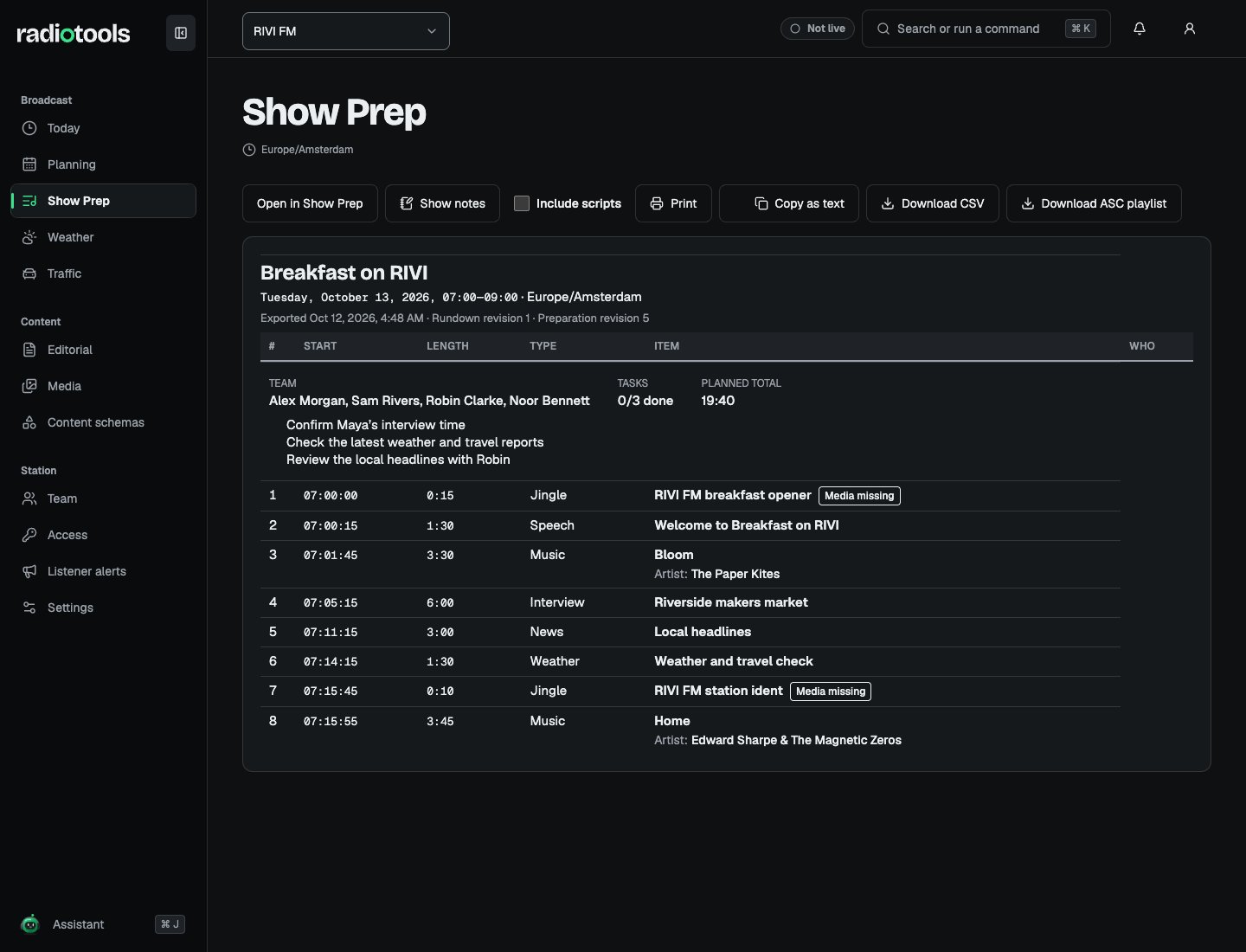 The sheet identifies the exported revision. It is a snapshot; return to the workspace for later changes. ASC export includes eligible music items with durations from 0:01 to 59:59 and reports skipped items.
## Start live presentation
An authorized presenter reviews readiness and starts the live workspace. Live control permission is required. See [Live presentation](/radiotools/daily-work/live-presentation) for takeover, progression, automation following, and connection recovery.
## Related topics
- [Planning](/radiotools/daily-work/planning.md)
- [RadioTools help](/radiotools/index.md)
- [Daily work](/radiotools/daily-work/index.md)
- [Roles and access](/radiotools/station-admin/roles-and-access.md)
- [Today](/radiotools/daily-work/today.md)
This documentation is built and hosted on [Mintlify](https://mintlify.com), a developer documentation platform.
The sheet identifies the exported revision. It is a snapshot; return to the workspace for later changes. ASC export includes eligible music items with durations from 0:01 to 59:59 and reports skipped items.
## Start live presentation
An authorized presenter reviews readiness and starts the live workspace. Live control permission is required. See [Live presentation](/radiotools/daily-work/live-presentation) for takeover, progression, automation following, and connection recovery.
## Related topics
- [Planning](/radiotools/daily-work/planning.md)
- [RadioTools help](/radiotools/index.md)
- [Daily work](/radiotools/daily-work/index.md)
- [Roles and access](/radiotools/station-admin/roles-and-access.md)
- [Today](/radiotools/daily-work/today.md)
This documentation is built and hosted on [Mintlify](https://mintlify.com), a developer documentation platform.