> ## Documentation Index
> Fetch the complete documentation index at: https://docs.rivi.software/llms.txt
> Use this file to discover all available pages before exploring further.
# Today
> Find upcoming broadcasts, preparation tasks, and editorial work.
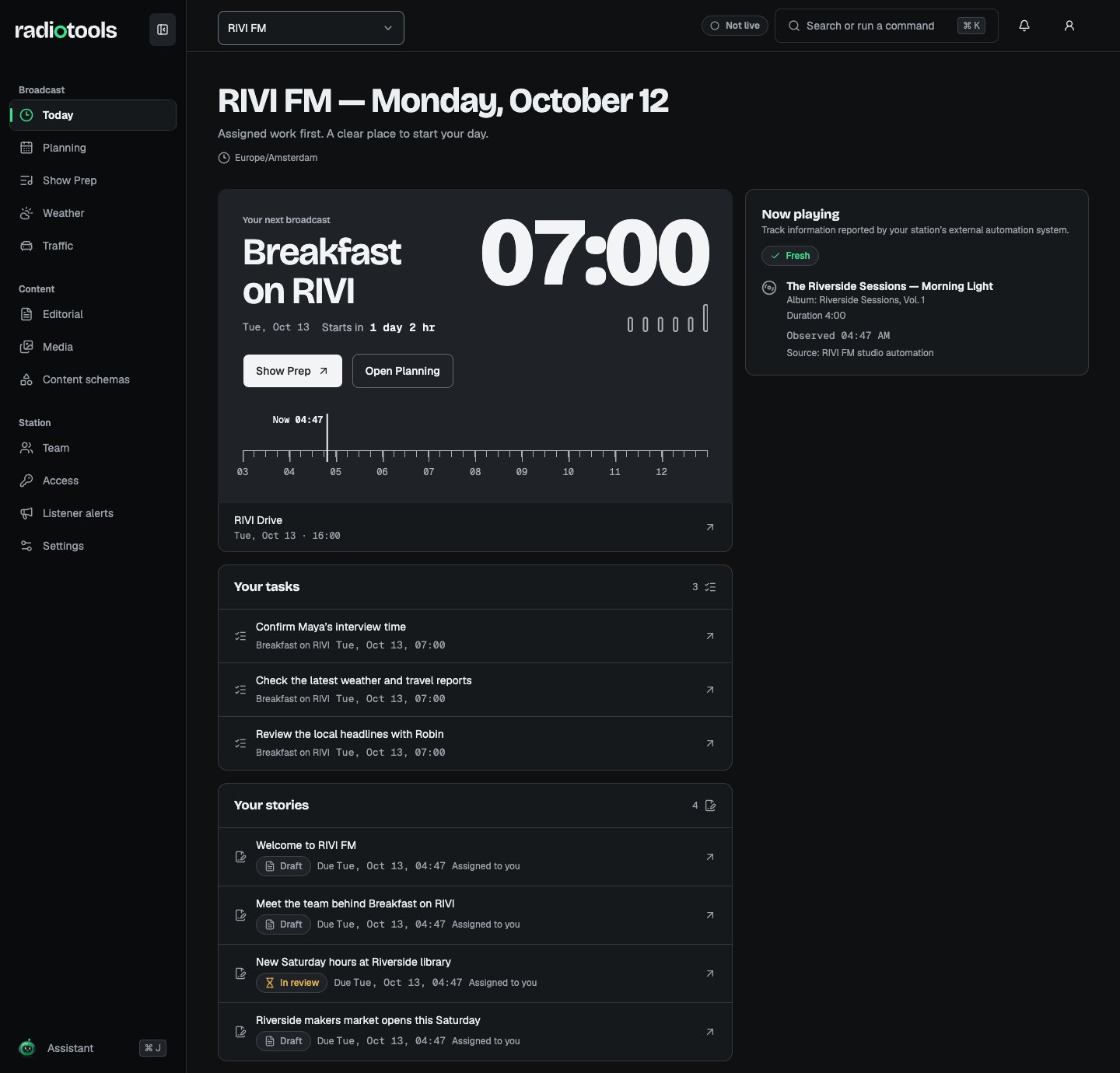
Today brings together your assigned broadcasts, unfinished preparation tasks, editorial work, and notifications for the active station.
 ## Open your next broadcast
The upcoming broadcast area shows accessible scheduled or live broadcasts in the next 14 days, with up to ten listed. Open a broadcast to continue its preparation. Use **Open Planning** when you need the full station calendar or a different date.
A countdown shows the time until a scheduled start. Check the separate live status indicator for the station's live workspace state.
## Finish preparation tasks
Open a task to return to its broadcast in Show Prep. Complete or reassign it there. Today reflects the saved preparation state; an empty task list does not by itself mean that the rundown is ready to go live.
## Continue editorial work
**Editorial work** links to records you can edit and content waiting for your review. Open the record to check its saved revision and workflow status before approving or publishing it.
Notifications can point you to assignments or work that needs attention. Open the linked record to act on it; viewing a notification does not complete the underlying task.
## Search the workspace
Use **Search or run a command**, or press **⌘ K** on Mac or **Ctrl K** on Windows and Linux. Enter at least two characters to search editorial content and media you can access. Members also appear when your role allows member management.
Use the arrow keys to select a result, **Enter** to open it, and **Escape** to close the palette. Search stays within the active station and respects private-content rules. If a result is missing, confirm the station and try a shorter query.
## Reported tracks and station essentials
The now-playing tile shows metadata received from external automation. Check freshness before using it as a reference. Station essentials show the station timezone and publishing language; your personal interface language is configured separately.
If Today is empty, check that broadcasts have been scheduled and assigned to you. If loading fails, use the retry action and confirm your station access. See [Troubleshooting](/radiotools/daily-work/troubleshooting).
## Related topics
- [Get started](/radiotools/getting-started.md)
- [Daily work](/radiotools/daily-work/index.md)
- [Show preparation](/radiotools/daily-work/show-preparation.md)
- [Troubleshooting](/radiotools/daily-work/troubleshooting.md)
- [Station settings](/radiotools/station-admin/station-settings.md)
This documentation is built and hosted on [Mintlify](https://mintlify.com), a developer documentation platform.
## Open your next broadcast
The upcoming broadcast area shows accessible scheduled or live broadcasts in the next 14 days, with up to ten listed. Open a broadcast to continue its preparation. Use **Open Planning** when you need the full station calendar or a different date.
A countdown shows the time until a scheduled start. Check the separate live status indicator for the station's live workspace state.
## Finish preparation tasks
Open a task to return to its broadcast in Show Prep. Complete or reassign it there. Today reflects the saved preparation state; an empty task list does not by itself mean that the rundown is ready to go live.
## Continue editorial work
**Editorial work** links to records you can edit and content waiting for your review. Open the record to check its saved revision and workflow status before approving or publishing it.
Notifications can point you to assignments or work that needs attention. Open the linked record to act on it; viewing a notification does not complete the underlying task.
## Search the workspace
Use **Search or run a command**, or press **⌘ K** on Mac or **Ctrl K** on Windows and Linux. Enter at least two characters to search editorial content and media you can access. Members also appear when your role allows member management.
Use the arrow keys to select a result, **Enter** to open it, and **Escape** to close the palette. Search stays within the active station and respects private-content rules. If a result is missing, confirm the station and try a shorter query.
## Reported tracks and station essentials
The now-playing tile shows metadata received from external automation. Check freshness before using it as a reference. Station essentials show the station timezone and publishing language; your personal interface language is configured separately.
If Today is empty, check that broadcasts have been scheduled and assigned to you. If loading fails, use the retry action and confirm your station access. See [Troubleshooting](/radiotools/daily-work/troubleshooting).
## Related topics
- [Get started](/radiotools/getting-started.md)
- [Daily work](/radiotools/daily-work/index.md)
- [Show preparation](/radiotools/daily-work/show-preparation.md)
- [Troubleshooting](/radiotools/daily-work/troubleshooting.md)
- [Station settings](/radiotools/station-admin/station-settings.md)
This documentation is built and hosted on [Mintlify](https://mintlify.com), a developer documentation platform.