> ## Documentation Index
> Fetch the complete documentation index at: https://docs.rivi.software/llms.txt
> Use this file to discover all available pages before exploring further.
# Roles and access
> Control station actions without exposing private staff content.
Each person at a station has a role. A job can add permissions for that person only. Permissions belong to the active station; the same person can have a different role and job at another station.
## Built-in roles
| Role | Responsibility |
| - | - |
| Owner | Every permission, owner-only operations, and required two-factor authentication |
| Admin | Administration actions granted by the station; cannot change roles |
| Member | Daily work allowed by the station's member permissions |
Owner permissions can't be reduced. Only owners can change roles, edit role permissions, manage billing, grant support access, and export station data. Owners must use two-factor authentication to open the station, and you can only make someone an owner after they have turned it on. A station always keeps at least one owner.
## Jobs on air
A job gives one person a ready-made set of permissions on top of their role. Nobody else's access changes. Choose a job when you invite someone, or later on **Team**.
| Job | What it allows |
| - | - |
| **Presenter** | Prepare and go live with the shows you present or are on the team for. Cannot change the schedule, open other shows' preparation, publish website news, or change station settings. |
| **Producer** | Manage planning and preparation for all shows and go live. Cannot publish news or manage billing and credentials. |
| **News desk** | Write, review, and publish news on the website. Does not include live broadcast control or show planning. |
You can also add individual permissions for one person. You can only grant permissions you hold yourself. See [Team and invitations](/radiotools/station-admin/team#change-a-job-or-permissions).
## Edit role permissions
Owners edit what admins and members may do in **Access**, under **Role permissions**.
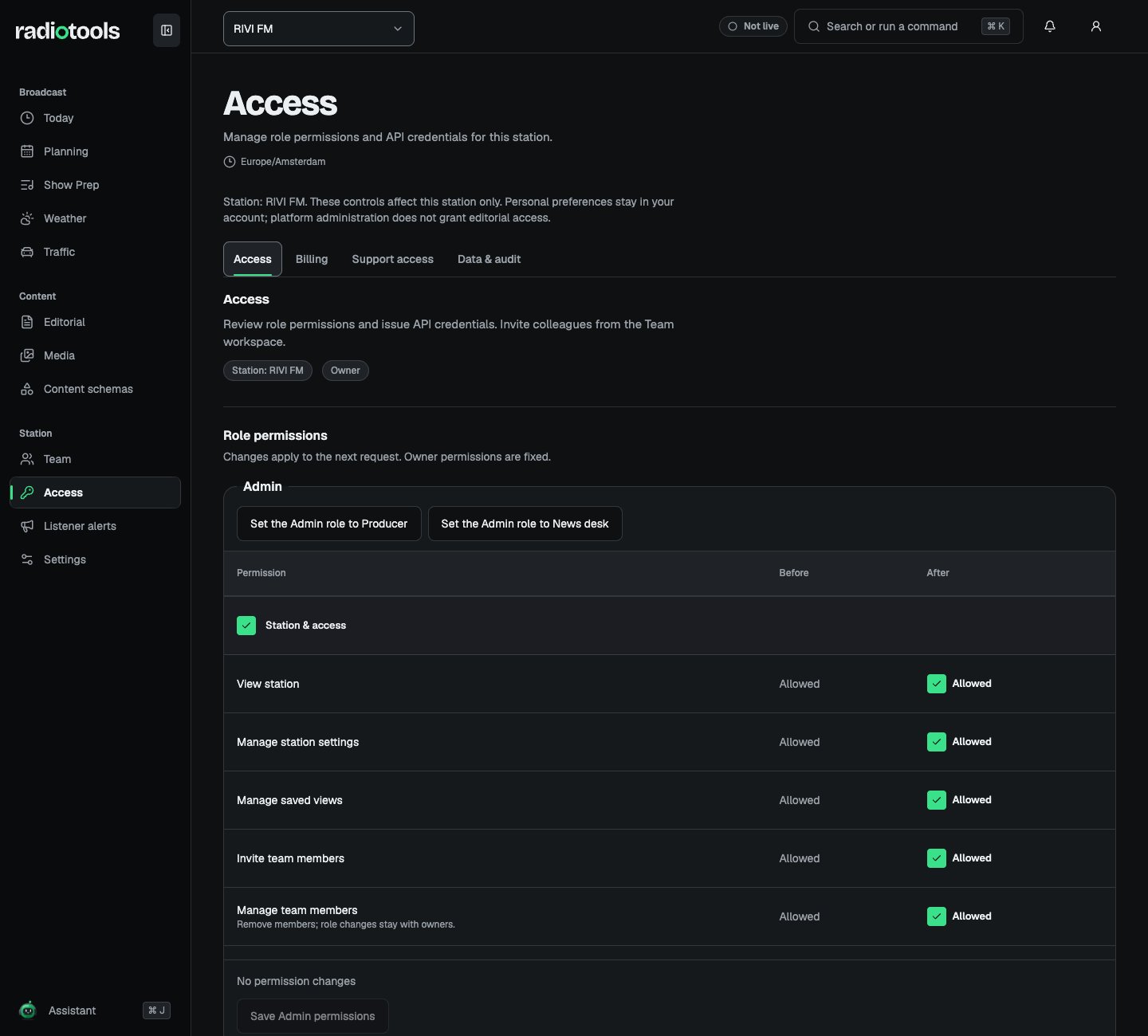 1. Open **Access** and find the **Admin** or **Member** role.
2. Tick or clear permissions. They are grouped under **Station & access**, **Editorial & content**, and **Broadcast & preparation**.
3. Check **Review changes before saving**, which lists each permission before and after.
4. Choose **Save Admin permissions** or **Save Member permissions**.
To apply a job to a whole role, use **Set the Member role to Presenter** or a similar button. This changes everyone with that role. Changes apply on the next request.
Admins without owner rights see **Role permissions are managed by the station owner**, with links to **Team** and **Settings**.
## Match permissions to work
| Work | Permissions to review |
| - | - |
| Create programs and recurring schedules | **Manage planning** |
| Edit assigned broadcasts and preparation | **Edit broadcasts**; **View preparation for all shows** for every show |
| Write, review, and publish stories | **Edit content**, **Review content**, and **Publish content** |
| Operate the live workspace | **Control live broadcasts** and access to the broadcast |
| Configure fields or shared views | **Manage content schemas** or **Manage saved views** |
| Change station settings or AI | **Manage station settings** or **Manage AI settings** |
| Invite or remove staff | **Invite team members** or **Manage team members** |
| Issue API credentials | **Manage API credentials** |
| Work with guest contacts | **View guest contact details** or **Manage the contact book** |
Review permissions when a team changes responsibilities. Verify the result with the affected staff member rather than assuming that an administrator label grants every action.
## Permission and visibility are separate
An action permission does not automatically make every resource visible. A draft or idea may also require ownership, assignment, or explicit sharing. Administrators cannot read private staff content merely because they can manage the station.
A presenter's access follows assignment: shows they present, or broadcasts whose team they are on. Linking a presenter profile to a member on **Team** counts those shows as assigned.
Machine credentials also follow resource and workflow rules. A token does not bypass review-required publishing or private resources.
## When an action is missing
Confirm the active station, role, job, and resource assignment. Check that the station has not switched off the module, as a switched-off module is hidden for everyone. Ask an owner to review the permissions. After a membership or permission change, refresh the workspace before continuing.
## Related topics
- [Station administration](/radiotools/station-admin/index.md)
- [Team and invitations](/radiotools/station-admin/team.md)
- [Editorial policies](/radiotools/station-admin/editorial-policies.md)
- [Get started](/radiotools/getting-started.md)
- [Media library](/radiotools/daily-work/media.md)
This documentation is built and hosted on [Mintlify](https://mintlify.com), a developer documentation platform.
1. Open **Access** and find the **Admin** or **Member** role.
2. Tick or clear permissions. They are grouped under **Station & access**, **Editorial & content**, and **Broadcast & preparation**.
3. Check **Review changes before saving**, which lists each permission before and after.
4. Choose **Save Admin permissions** or **Save Member permissions**.
To apply a job to a whole role, use **Set the Member role to Presenter** or a similar button. This changes everyone with that role. Changes apply on the next request.
Admins without owner rights see **Role permissions are managed by the station owner**, with links to **Team** and **Settings**.
## Match permissions to work
| Work | Permissions to review |
| - | - |
| Create programs and recurring schedules | **Manage planning** |
| Edit assigned broadcasts and preparation | **Edit broadcasts**; **View preparation for all shows** for every show |
| Write, review, and publish stories | **Edit content**, **Review content**, and **Publish content** |
| Operate the live workspace | **Control live broadcasts** and access to the broadcast |
| Configure fields or shared views | **Manage content schemas** or **Manage saved views** |
| Change station settings or AI | **Manage station settings** or **Manage AI settings** |
| Invite or remove staff | **Invite team members** or **Manage team members** |
| Issue API credentials | **Manage API credentials** |
| Work with guest contacts | **View guest contact details** or **Manage the contact book** |
Review permissions when a team changes responsibilities. Verify the result with the affected staff member rather than assuming that an administrator label grants every action.
## Permission and visibility are separate
An action permission does not automatically make every resource visible. A draft or idea may also require ownership, assignment, or explicit sharing. Administrators cannot read private staff content merely because they can manage the station.
A presenter's access follows assignment: shows they present, or broadcasts whose team they are on. Linking a presenter profile to a member on **Team** counts those shows as assigned.
Machine credentials also follow resource and workflow rules. A token does not bypass review-required publishing or private resources.
## When an action is missing
Confirm the active station, role, job, and resource assignment. Check that the station has not switched off the module, as a switched-off module is hidden for everyone. Ask an owner to review the permissions. After a membership or permission change, refresh the workspace before continuing.
## Related topics
- [Station administration](/radiotools/station-admin/index.md)
- [Team and invitations](/radiotools/station-admin/team.md)
- [Editorial policies](/radiotools/station-admin/editorial-policies.md)
- [Get started](/radiotools/getting-started.md)
- [Media library](/radiotools/daily-work/media.md)
This documentation is built and hosted on [Mintlify](https://mintlify.com), a developer documentation platform.