> ## Documentation Index
> Fetch the complete documentation index at: https://docs.rivi.software/llms.txt
> Use this file to discover all available pages before exploring further.
# Team and invitations
> Invite colleagues and manage station membership, jobs, and support access.
Use **Team** to see who is at the station, invite colleagues, and manage membership. Everyone at the station can see the team list. Contact details and changes are for people who manage the team.
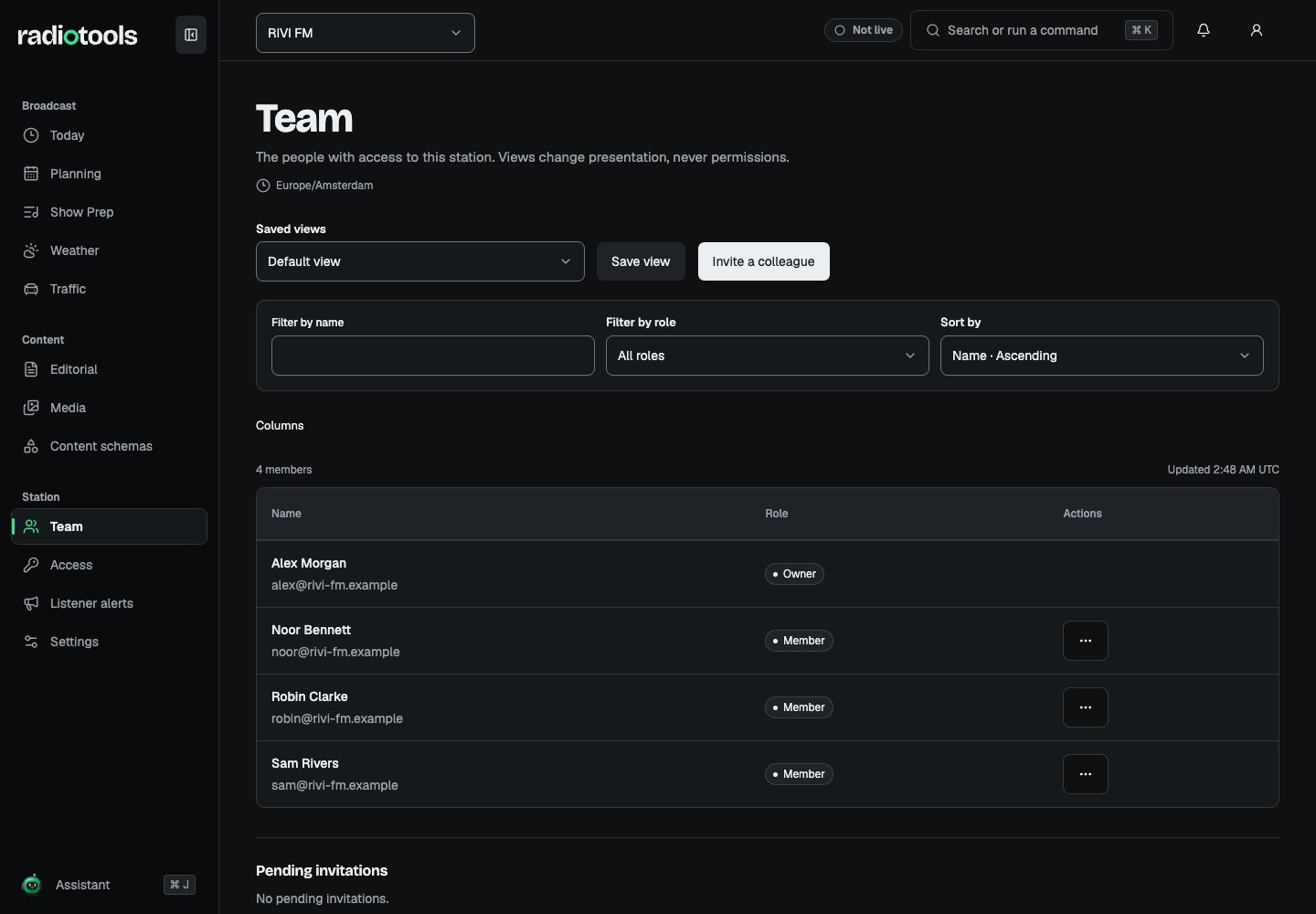 The list shows each person's role and job, and for team managers also **Email**, **2FA**, **Last active**, and **Programmes**. Saved views change how the list looks, never anyone's permissions.
## Invite a colleague
1. Select the correct active station and open **Team**.
2. Choose **Invite a colleague**.
3. Enter the colleague's **Email**.
4. Choose a **Job on air**: **Presenter**, **Producer**, **News desk**, or **No job: role only (advanced)**.
5. Choose the **Starting role**, then choose **Send invitation**.
You need **Invite team members**. Jobs that include permissions you do not hold yourself are not offered. Only owners can invite someone as an owner. Review [Roles and access](/radiotools/station-admin/roles-and-access) before granting administration privileges.
An invitation does not become a membership until accepted. Ask the colleague to accept it with the invited, verified email address. **Pending invitations** shows each open invitation with its job and expiry. Use **Resend invitation** if it didn't arrive, or **Revoke invitation** for one that is no longer needed.
When billing is enabled, each member and pending invitation takes a seat. See [Billing](/radiotools/station-admin/billing).
## Change a job or permissions
Open the member's actions menu and choose **Change job / custom permissions**.
* Choose a **Job on air**, or **No job**.
* Under **Permissions for *name* only**, tick extra permissions on top of the role.
* Check **Before and after**, which lists what the person gains and loses.
* Choose **Save job and permissions**.
You can only grant permissions you hold yourself. For owners, the job is only how they are named on the team, because owners already hold every permission.
In the same dialog, use the **presents as** list to link presenter profiles to the member. Shows with those presenter profiles then count as assigned to them: their preparation opens and the shows appear under **My shows**.
## Change a role or remove a member
Only owners can change roles. In the member's actions menu, choose **Change role: Member**, **Change role: Admin**, or **Change role: Owner**, then **Save role change**. The change applies on the next request. A person must have two-factor authentication turned on before you can make them an owner.
To remove someone, choose **Remove member** and confirm. You need **Manage team members**. The member loses station access and active sessions end. Invite them again to restore membership. The product protects the last owner from removal or demotion.
Before removing an account, review its assigned broadcasts and tasks so the team can continue the work. Membership changes do not transfer someone's private ideas to another member.
## Grant vendor support access
Owners can grant temporary access to a RIVI support engineer in **Access → Support access**.
1. Enter the **Support account email** and a **Reason**.
2. Set the **Duration (hours, max 72)**.
3. Choose **Grant support access** and confirm.
The support account must be a separate account with a verified email and two-factor authentication, and must not already be a member. Access ends automatically, is recorded in the activity log, and does not take a seat. Choose **Revoke** to end it early.
Support access is limited to member-level rules. Support users cannot be promoted, export station data, or open private drafts and private ideas. If a support engineer reports an error, ask for the reference code on the page; it matches the entry in the activity log.
If all owner accounts are unavailable, use your agreed support channel for account recovery.
## Related topics
- [Roles and access](/radiotools/station-admin/roles-and-access.md)
- [Station administration](/radiotools/station-admin/index.md)
- [RadioTools help](/radiotools/index.md)
- [Billing](/radiotools/station-admin/billing.md)
- [Get started](/radiotools/getting-started.md)
This documentation is built and hosted on [Mintlify](https://mintlify.com), a developer documentation platform.
The list shows each person's role and job, and for team managers also **Email**, **2FA**, **Last active**, and **Programmes**. Saved views change how the list looks, never anyone's permissions.
## Invite a colleague
1. Select the correct active station and open **Team**.
2. Choose **Invite a colleague**.
3. Enter the colleague's **Email**.
4. Choose a **Job on air**: **Presenter**, **Producer**, **News desk**, or **No job: role only (advanced)**.
5. Choose the **Starting role**, then choose **Send invitation**.
You need **Invite team members**. Jobs that include permissions you do not hold yourself are not offered. Only owners can invite someone as an owner. Review [Roles and access](/radiotools/station-admin/roles-and-access) before granting administration privileges.
An invitation does not become a membership until accepted. Ask the colleague to accept it with the invited, verified email address. **Pending invitations** shows each open invitation with its job and expiry. Use **Resend invitation** if it didn't arrive, or **Revoke invitation** for one that is no longer needed.
When billing is enabled, each member and pending invitation takes a seat. See [Billing](/radiotools/station-admin/billing).
## Change a job or permissions
Open the member's actions menu and choose **Change job / custom permissions**.
* Choose a **Job on air**, or **No job**.
* Under **Permissions for *name* only**, tick extra permissions on top of the role.
* Check **Before and after**, which lists what the person gains and loses.
* Choose **Save job and permissions**.
You can only grant permissions you hold yourself. For owners, the job is only how they are named on the team, because owners already hold every permission.
In the same dialog, use the **presents as** list to link presenter profiles to the member. Shows with those presenter profiles then count as assigned to them: their preparation opens and the shows appear under **My shows**.
## Change a role or remove a member
Only owners can change roles. In the member's actions menu, choose **Change role: Member**, **Change role: Admin**, or **Change role: Owner**, then **Save role change**. The change applies on the next request. A person must have two-factor authentication turned on before you can make them an owner.
To remove someone, choose **Remove member** and confirm. You need **Manage team members**. The member loses station access and active sessions end. Invite them again to restore membership. The product protects the last owner from removal or demotion.
Before removing an account, review its assigned broadcasts and tasks so the team can continue the work. Membership changes do not transfer someone's private ideas to another member.
## Grant vendor support access
Owners can grant temporary access to a RIVI support engineer in **Access → Support access**.
1. Enter the **Support account email** and a **Reason**.
2. Set the **Duration (hours, max 72)**.
3. Choose **Grant support access** and confirm.
The support account must be a separate account with a verified email and two-factor authentication, and must not already be a member. Access ends automatically, is recorded in the activity log, and does not take a seat. Choose **Revoke** to end it early.
Support access is limited to member-level rules. Support users cannot be promoted, export station data, or open private drafts and private ideas. If a support engineer reports an error, ask for the reference code on the page; it matches the entry in the activity log.
If all owner accounts are unavailable, use your agreed support channel for account recovery.
## Related topics
- [Roles and access](/radiotools/station-admin/roles-and-access.md)
- [Station administration](/radiotools/station-admin/index.md)
- [RadioTools help](/radiotools/index.md)
- [Billing](/radiotools/station-admin/billing.md)
- [Get started](/radiotools/getting-started.md)
This documentation is built and hosted on [Mintlify](https://mintlify.com), a developer documentation platform.