

Accept your invitation
- Open the link in the invitation email. The Join your station page shows the station, who invited you, and your role.
- Choose Sign in if you already have an account, or Create an invited account if you don’t.
- If you created an account, open the verification link in your email, then sign in.
- Choose Accept invitation.
Sign in
Open your station’s RadioTools URL and enter your email and password. If two-factor authentication is on, enter the code from your authenticator app, or choose Use a backup code. Station owners must turn on two-factor authentication before they can open their station. If it is not on yet, the workspace shows Set up two-factor authentication. For everyone else it is recommended. See Account and stations. If you forgot your password, choose Forgot your password? on the sign-in page and then Send reset link. Use the latest reset email; an expired link requires a new request.Choose your active station
If you belong to more than one station, Choose a station lists each one with your role and the station’s local time. Select a station and choose Continue to that station. To change stations later, use the station switcher at the top of the workspace. You can search stations by name. Check the station name before editing, inviting staff, or changing settings. Memberships and permissions are separate for each station. Save your work before switching. If an editor asks you to save or discard changes, resolve that prompt first. Once the station changes, its screens load data for the newly selected station.Your first visit
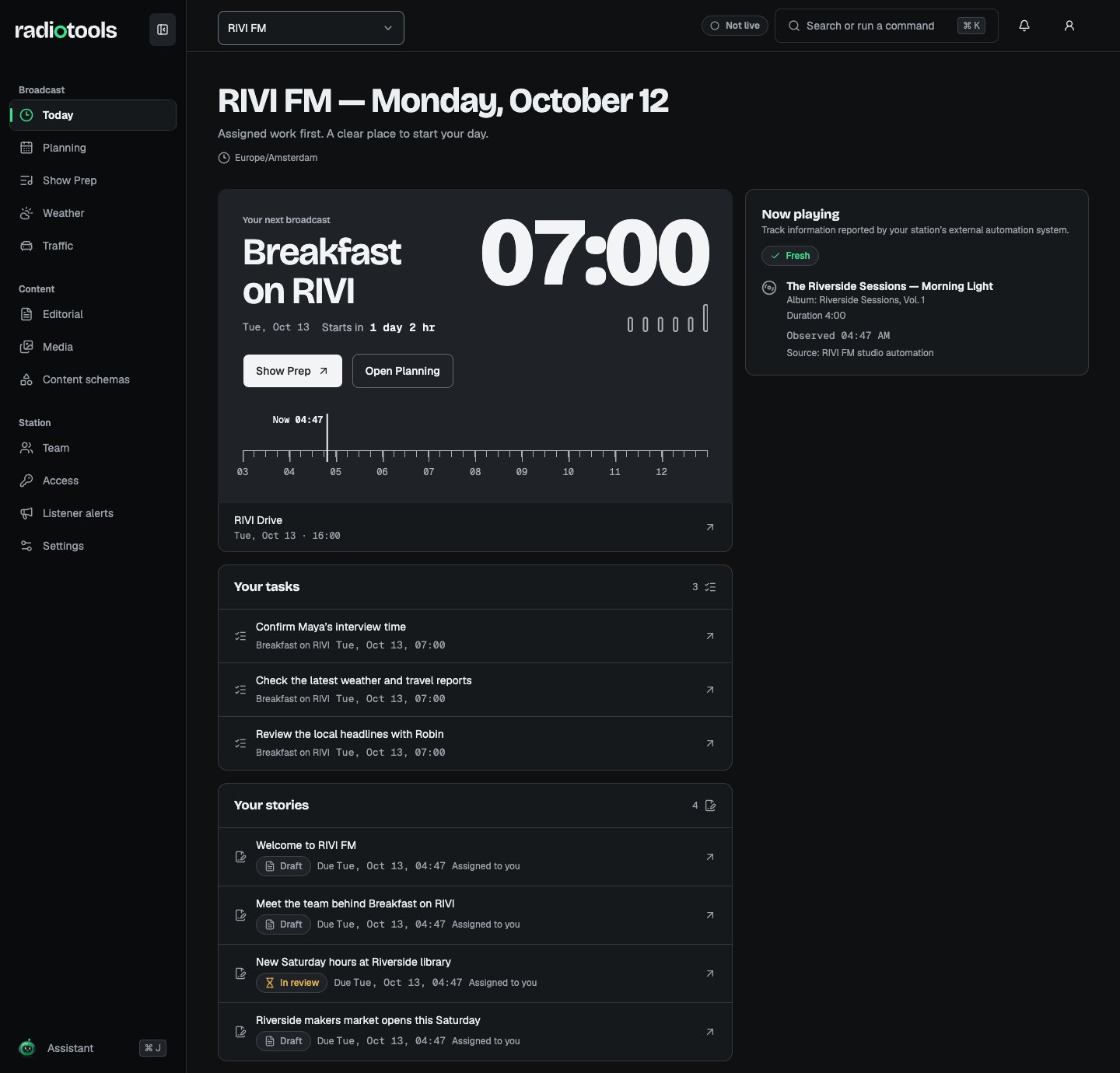
Sample: RIVI FM in the English interface.