

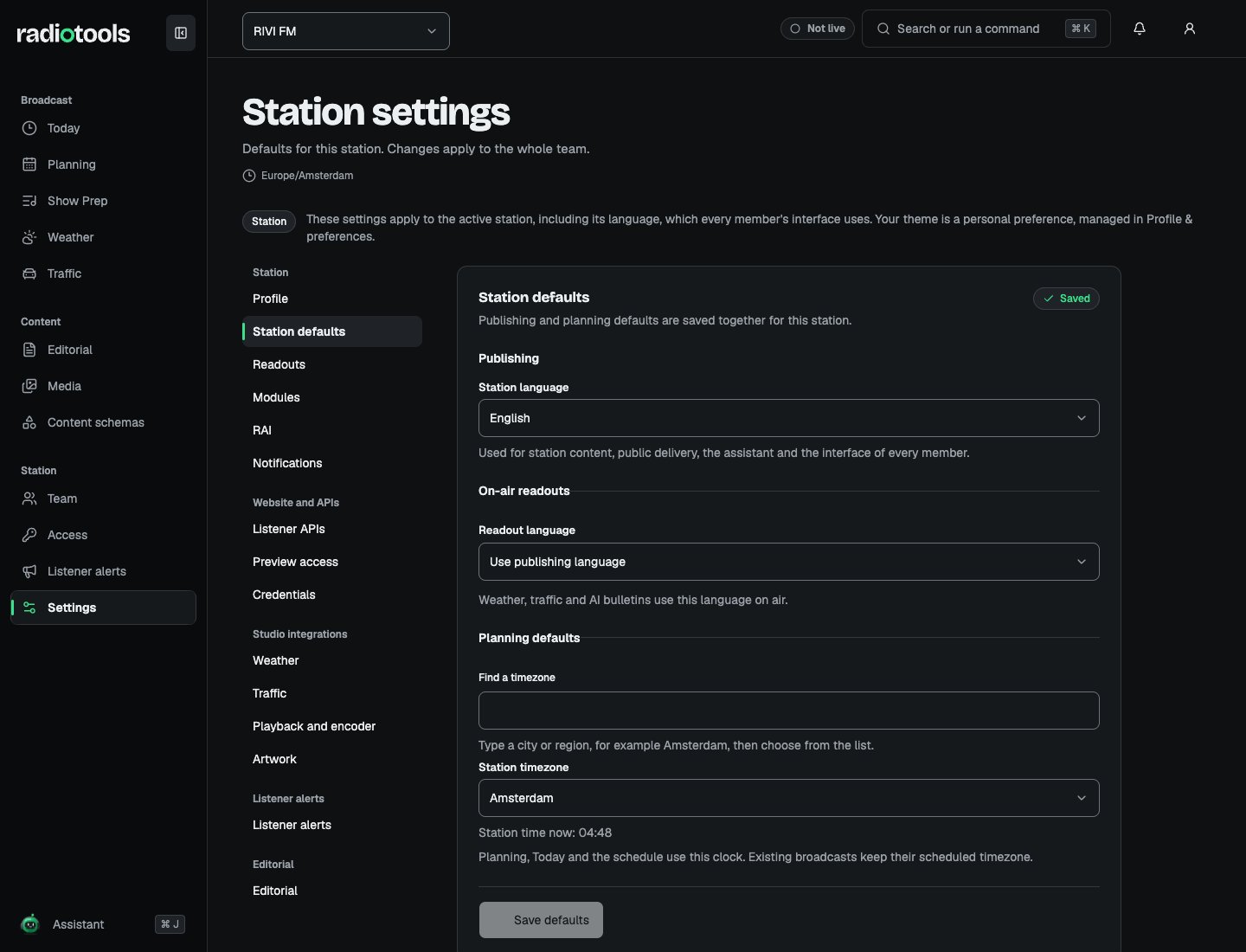
Sample: station defaults for RIVI FM.
Find a settings page
Settings is split into pages, grouped in a side rail:
You see only the pages your permissions allow. Most pages need Manage station settings. Credential, artwork, and listener alert pages need Manage API credentials, and RAI needs Manage AI settings. A page that belongs to a switched-off module is hidden until you switch the module back on.
Credentials, playback, artwork, and listener alerts are covered in Integrations. The RAI page is covered in AI settings, and the Editorial page in Editorial policies.
Station profile
Profile describes who the station is and how listeners reach it. Everything on this page is public through the station API and appears on connected websites and apps.- Use Rename station to change the name shown in the station switcher, on your website, and in the public API. Names can be up to 120 characters.
- Under On air and online, add a Tagline, About the station, Frequency, Website, and Stream URL.
- Under Contact, add a contact email, phone number, and address.
- Under Social links, choose Add link for each network.
https://. Choose Save profile when you finish.
Save station defaults
On Station defaults, set:- Station language: the language of station content, public delivery, and the assistant. It is also the interface language for every member at the station.
- Readout language: the language weather, traffic, and AI bulletins use on air. Choose Use publishing language to follow the station language.
- Station timezone: search for a named timezone, such as
Europe/Amsterdam. Planning, Today, and the schedule use this clock.
Pronunciation list
On Readouts, the Pronunciation list controls how the station says places, roads, and names in its weather and traffic readouts. Each entry has:
Each entry needs a replacement or a hint. A station can have up to 200 entries.
Suggestions lists names from your weather areas, watched roads, and station name that are not on the list yet. Choose Add followed by the name, such as Add Zevenaar, to add a suggestion. Nothing is saved until you choose Save pronunciation list.
Modules
On Modules, switch off what your station does not run. Planning, prep, live, and notifications are always on.
Choose Save modules. A switched-off module is hidden for everyone and its scheduled work stops. Nothing is deleted: switching it back on restores it as it was.
Notifications
On Notifications, choose which notification kinds the station uses. A kind that is off is not sent to anyone; notifications already sent stay in the inbox. Under Send broadcast reminders, choose one to three moments before each broadcast. Reminders go to everyone assigned to the broadcast. The week-ahead overview goes out on Sunday from 18:00 station time. Choose Save notifications. Members choose email and reminders for themselves on their own Notifications page.Listener APIs
On Listener APIs, individual switches control listener access to Now playing, Track history, Schedule, Programs, Content, Weather, Traffic, and the Public socket. Take all public APIs offline disables listener delivery while keeping the individual switch choices for later. Choose Save public APIs. Listener JSON requires a station credential withlistener:read even when an API is on. Weather and traffic also need recorded redistribution permission on their settings pages. Studio access does not imply permission to redistribute provider data.
Preview access
Preview access is separate from the listener APIs:- Listener website origin: one HTTPS origin without a path, such as
https://listen.example.com. Leave it empty to block browser preview calls. - Allow mobile apps: lets native and hybrid apps use preview APIs with a Bearer preview grant.
- Draft preview address on the website: where your website shows a draft, such as
{origin}/preview/{recordId}/{revision}. When set, editors get an Open on website button that sends a 15-minute preview grant to that address. Leave it empty to hide the button.
Weather coverage
On Weather, choose the areas the studio needs and the Forecast timezone.- Under Find a place, type a city or village and choose Search.
- Choose Use next to the right match, then Add location.
- Choose Save weather coverage.
Traffic watch list
On Traffic, choose All A-roads, All N-roads, All A-roads and N-roads, or Individual roads. For individual roads, use Find a road to search by road number, such asA12. Choose Save traffic watch list. Traffic and Show Prep use this station watch list.
Under Public traffic redistribution, record the permission with Allow public traffic API.
The weather and traffic pages show a status line with the age of the latest data. Choose Fetch now to refresh it.