

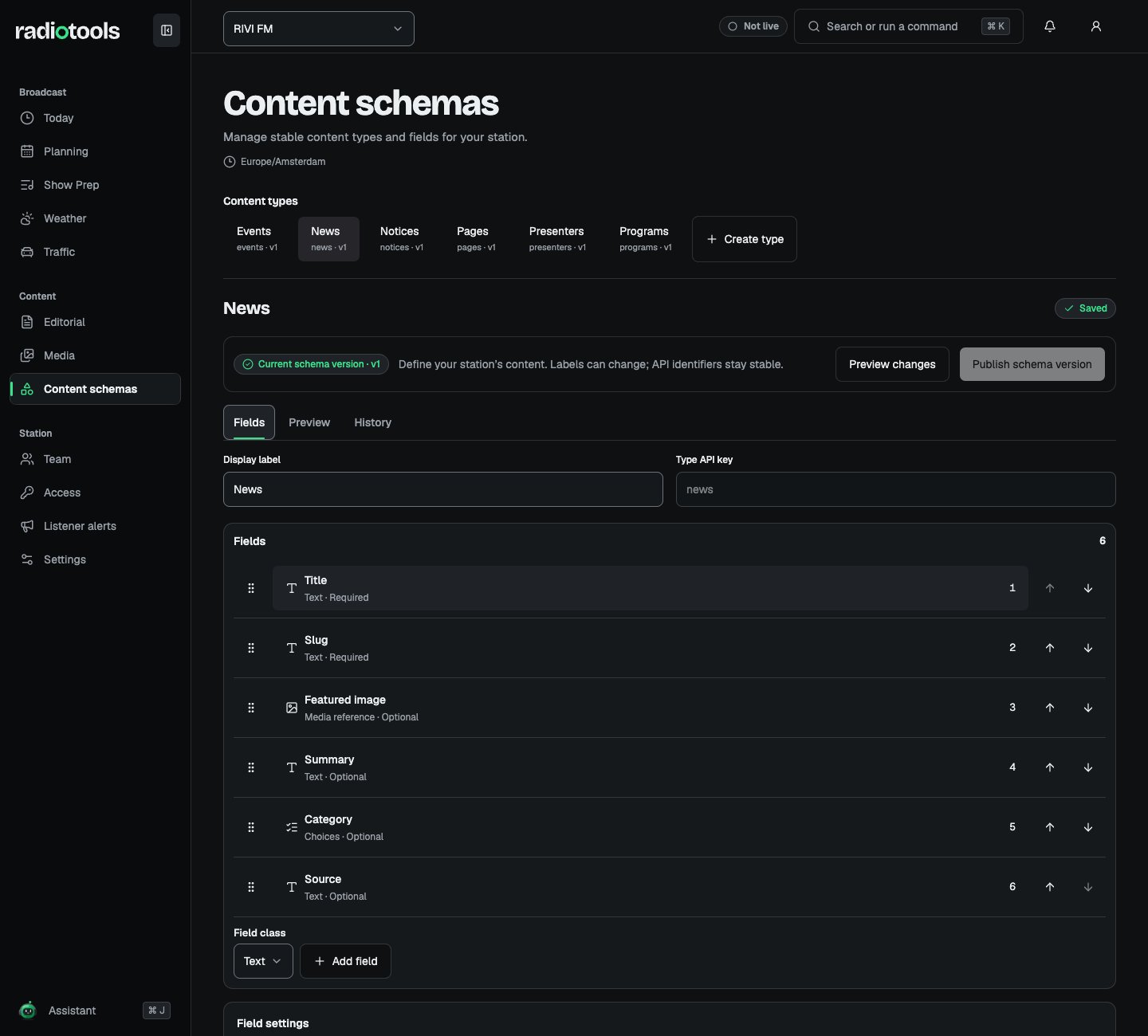
Sample: the RIVI FM news content type.
Default fields
The standard types come with optional fields for radio content:
Pages have no extra default fields. You can relabel, reorder, or archive these fields like your own.
Published program and presenter records link back to the programs in Planning. Public program data also includes the program’s presenters and regular time slots from the schedule.
Plan the type before editing
Decide what authors must enter, what listeners should receive, and which related records or media are needed. For a fictional RIVI FM event type, you might need a title, start date, venue, and artwork. Use stable API keys for types and fields. Keys identify the data used by integrations; display labels are the names authors see. Avoid changing a key just to improve its display wording.Configure fields
Choose Add field and pick a Field class: Text, Rich text, Number, Boolean, Date/time (station clock), Choices, Media reference, Content reference, or Repeated group. Configure required values and constraints according to the field class. A schema can contain up to 64 fields, including group children. For a Choices field, turn on Allow several choices to let writers tick any number of options, such as tags, categories, or regions. Set Maximum choices to limit them. Public definition determines which fields appear in published listener data. Keep internal notes and staff-only information out of public fields. Reference visibility can require a related record to be published, or allow any target the caller can read for a private field.Review and publish a schema version
Your edits stay local, marked as Unpublished changes, until you publish them.- Choose Preview changes to see the Change impact: a Compatible change, or a Breaking change that needs validation or migration.
- Check the effect on existing drafts and saved views. On the Migration tab, use Prepare draft migration to correct affected drafts.
- Choose Publish schema version and confirm.
Authoring and review
The station workflow, rich body authoring mode, and review requirement are configured in Editorial policies. Decide whether the type needs a continuous document or ordered blocks, then explain the workflow to authors.Custom rundown types
Custom preparation item types are separate from editorial content schemas. In Show Prep, staff with Manage planning open Item types to add up to eight fields to a built-in type or define a custom type, such ascustom:sponsor. A custom type can need a script or media and has a default length. Built-in music, speech, news, and other types stay available.
A station can have up to 20 custom types, so review unused types before adding more. Required fields count towards an item’s readiness.